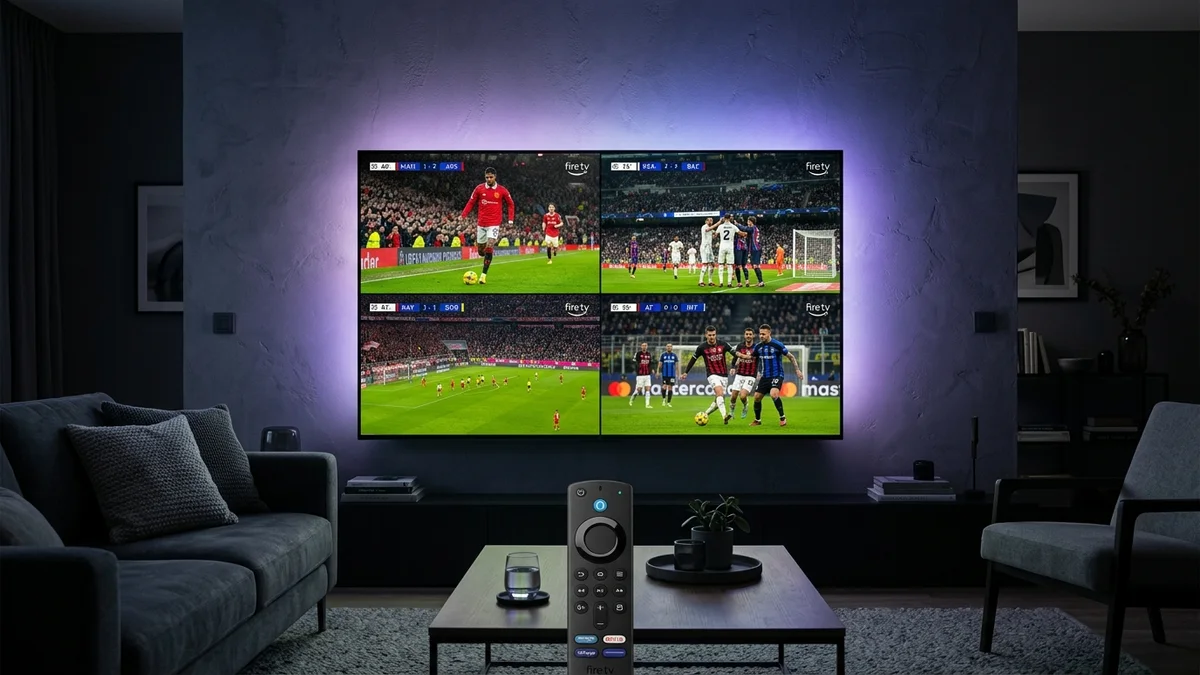
Key Takeaways: TiviMate Multi-View Masterclass
- • TiviMate Premium Required: Multi-View is exclusively available on TiviMate Premium. Free tier users cannot split the player screen.
- • Concurrent Streams Rule: Each Multi-View window consumes 1 independent connection from your provider. Streaming 4 screens requires an account with 4 concurrent connections to avoid instant freezing or server lockouts.
- • Remote Button Shortcut: Map a one-click shortcut by going to Settings > Remote control > Player > Long press Play/Pause (or Guide) > Multi-view to toggle grid layouts instantly.
- • Prevent Crashes with Tunneled Playback: If multiple screens freeze or crash on Firestick, toggle off Settings > Playback > Tunneled playback to stabilize GPU rendering.
What Is TiviMate Multi-View & Why Is It Game-Changing?
TiviMate's Multi-View is widely considered the crown jewel of IPTV media player features. Rather than flipping back and forth between simultaneous breaking news broadcasts, financial market updates, or competing live events, Multi-View lets you tile up to 9 channels simultaneously on a single TV screen.
You can configure a split 2-screen side-by-side feed, a quad 4-way 2x2 grid, or an expansive 9-screen command center. With responsive audio focus, clicking any window with your directional pad switches sound immediately while keeping all surrounding video streams playing in real time without lag.
TiviMate Multi-View Architecture: Concurrent Decoding & Resource Allocation
Each Multi-View window requests an independent stream connection. Running 4 screens requires 4 concurrent stream permissions and dedicated GPU memory bandwidth.
Device Capabilities: How Many Screens Can Your Hardware Handle?
Decoding multiple live H.264 and HEVC (H.265) video feeds simultaneously requires significant GPU hardware acceleration and device RAM. Pushing beyond your streaming stick's thermal and memory limits can cause frame drops, audio stutter, or total app crashes:
| Streaming Hardware | RAM | Recommended Multi-View Limit | Performance Stability |
|---|---|---|---|
| Firestick Lite / HD | 1 GB | 2 Screens Max | Basic (Avoid 4K/60fps streams) |
| Firestick 4K / Chromecast 4K | 1.5 - 2 GB | 2 to 4 Screens | Good for 1080p channels |
| Firestick 4K Max / Onn 4K Pro | 2 - 3 GB | 4 Screens (Fluid 60fps) | High stability with Wi-Fi 6 |
| Nvidia Shield Pro / Apple TV 4K | 3 - 4 GB | Up to 9 Screens | Flawless commercial-grade power |
How to Open & Customize Multi-View in TiviMate
Method 1: Open Multi-View from the Player Overlay Bar
- Play any channel in full screen on TiviMate.
- Press Select / OK on your remote to display the playback menu bar.
- Press the Down arrow to reach the action icons.
- Scroll right until you see the Multi-View icon (a split-screen grid icon) and click it.
- Select Add screen. Your channel list or TV Guide will appear—pick the next channel you wish to watch.
- Repeat the process to add additional screens up to your device limit.
Method 2: Map a Remote Shortcut for 1-Click Launch
Navigating the overlay bar repeatedly is slow. Power users map a dedicated button to toggle Multi-View instantly:
- Navigate to TiviMate Settings ➡️ Remote control ➡️ Player.
- Choose a remote button you rarely use for other actions (such as Long press Play/Pause, Long press Guide, or Long press Blue/Green).
- Scroll through the actions list and assign it to Multi-view.
- Now, whenever you are watching a full-screen channel, holding down that button immediately launches or exits your Multi-View grid!
Switching Audio & Full Screen Selection
Managing active screens within Multi-View is straightforward:
- Audio Focus: Use your remote’s directional arrows (Left, Right, Up, Down) to move the highlighted boundary box over the desired screen. Audio switches instantly to the active window.
- Maximize to Full Screen: Press and hold Select/OK on any window to expand it to full screen. Long-press again to snap back into the Multi-View grid.
- Change Channel inside a Window: Highlight a specific window, press Select/OK, and choose a replacement channel from the guide.
The #1 Mistake: Concurrent Connection Limits
By far the most common complaint among new Multi-View users is: "Whenever I add a second screen, both channels start buffering, looping, or throw error 401 Unauthorized."
This is not a bug in TiviMate. Each active window initiates a distinct, simultaneous connection to your stream provider. If your subscription is restricted to 1 single connection, your provider’s server firewall will immediately kick off the older stream or flag your account for simultaneous streaming abuse.
To run a smooth 2-screen or 4-screen layout, you must use a streaming service that officially supports multi-screen concurrent connections on high-bandwidth 10Gbps load-balanced servers.
12-Month Premium Plan
Stream high-bitrate 4K & FHD channels with ultra-low latency and zero buffering across all your streaming devices.
- 25,000+ Synchronized Channels (US/CA/UK)
- Xtream Codes & M3U Fast Auto-Sync
- Anti-Buffering 10Gbps Ingest Nodes
Lifetime VIP Pack
One-time payment for perpetual access, multi-screen concurrent streaming lines, and VIP support.
- Multi-Screen Concurrent Connections Included
- Lifetime Streaming Access (Zero Monthly Fees)
- Dedicated VIP WhatsApp Concierge Setup
Have Questions About Multi-Screen Setup?
Our technical support specialists can guide you through device-specific Multi-View configurations, bandwidth optimization, and multi-connection setup.
Chat with TiviMate Setup ConciergeFrequently Asked Questions
Can I watch channels from different playlists at the same time in Multi-View? ▼
Yes! TiviMate allows you to populate each Multi-View window from completely different playlists, categories, or server sources, provided your device has enough RAM to decode them.
Why does Multi-View buffer or freeze when I open more than 1 screen? ▼
This is almost always caused by a single-connection subscription limit. Every screen in Multi-View counts as an active stream. If your plan only permits 1 connection, opening a second screen will cause server-side freezing or stream drops.
How do I switch audio between screens in Multi-View? ▼
Simply use the directional arrows (Up, Down, Left, Right) on your Firestick or Android TV remote to highlight the screen you want to hear. The blue border indicates active audio focus.
What is the maximum number of screens TiviMate supports? ▼
TiviMate technically supports up to 9 simultaneous screens (a 3x3 grid). While high-end devices like the Nvidia Shield Pro can run 9 feeds smoothly, streaming sticks like the Firestick 4K Max perform best with 2 to 4 screens.