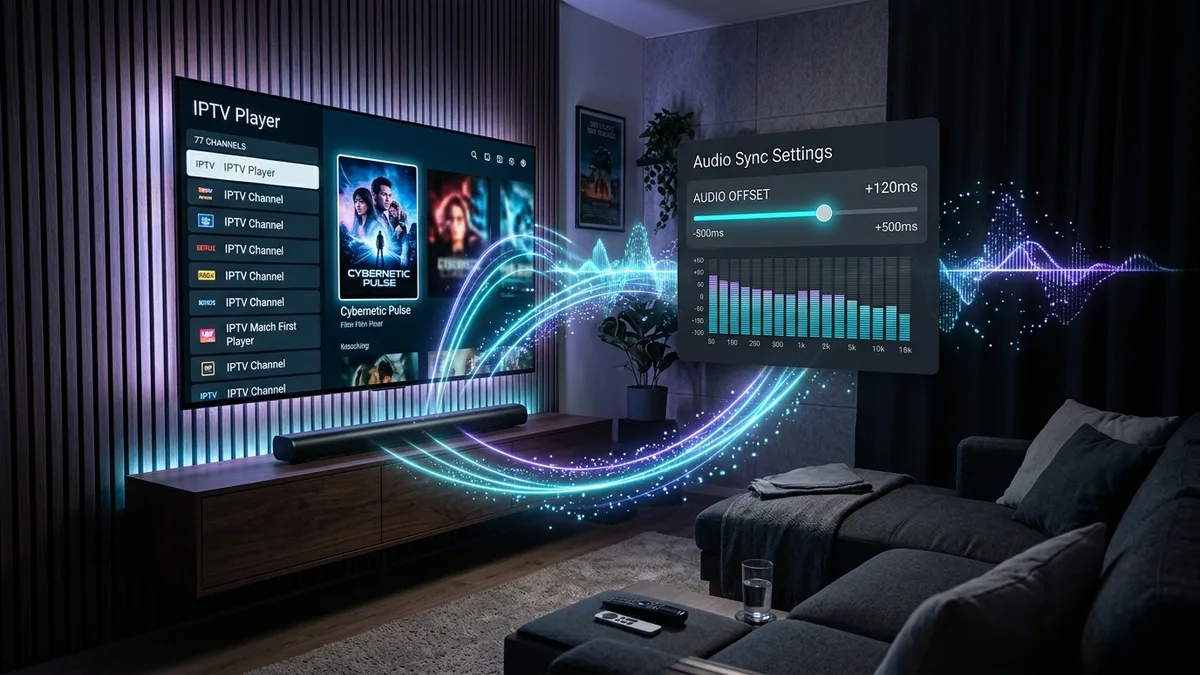
Key Takeaways: Quick Lip-Sync Fix
- • Instant In-Stream Fix: Press Select/OK while watching ➡️ click Settings (gear icon) ➡️ select Audio Offset and adjust by +/- 100ms increments until voices match mouth movements.
- • Hardware Decoder Mismatch: Switch Audio Decoder from Hardware to Software in Settings > Playback > Audio decoder to prevent Fire OS audio buffer choking.
- • Soundbar / eARC Delay: In Firestick OS Settings > Display & Sounds > Audio, switch Surround Sound to PCM to eliminate multi-channel Dolby Digital transcoding lag.
- • Server-Side Timestamp Skew: Budget playlists frequently inject desynced audio/video timestamps; switching to an enterprise low-latency feed permanently resolves packet drift.
Why Does TiviMate Audio Get Out of Sync?
Few things are more frustrating than watching a live news broadcast, sports event, or 4K film where the actor's lips move half a second before or after words come out. On streaming devices like the Amazon Firestick 4K Max, Chromecast with Google TV, and Onn 4K Pro, audio desynchronization (lip-sync delay) is among the most frequently reported issues.
Unlike native video streaming apps that control the entire hardware pipeline, modern live players receive multiplexed transport streams (HLS or MPEG-TS) containing independent video and audio packets. If your streaming stick's processor, external soundbar, or HDMI ARC handshake processes audio frames faster or slower than the high-bitrate 4K video frames, a timing gap develops.
Audio-Video Sync Pipeline: Where Latency Occurs & How TiviMate Corrects It
Video and audio packets travel through distinct hardware decoders. Soundbars and Bluetooth introduce additional latency that TiviMate's millisecond audio offset slider precisely recalibrates.
Step-by-Step: 5 Methods to Eliminate Lip-Sync Delay in TiviMate
Method 1: Adjust the Audio Offset Slider (The Instant Fix)
TiviMate features a granular millisecond-level audio delay engine that allows you to nudge sound forward or backward without leaving your channel:
- While playing any channel in full screen, press the Select / OK button on your remote to bring up the on-screen player controls.
- Press the down arrow and navigate right to the Settings icon (gear symbol) on the playback bar.
- Select Audio Offset from the menu.
- Use the left and right navigation buttons to adjust the offset in 50ms or 100ms increments:
- If the audio is heard before the lips move: add positive delay (e.g., +150ms).
- If the audio is heard after the lips move: introduce negative offset (e.g., -150ms).
- Toggle "Apply to all channels" if every stream exhibits the exact same latency, or leave it channel-specific for stubborn feeds.
Method 2: Change Video & Audio Decoders (Hardware vs. Software)
By default, TiviMate routes media through your streaming box's hardware decoders. While hardware decoding saves CPU power, certain audio codecs (such as AC3, EAC3 Dolby Digital Plus, and AAC-HE) can encounter timing desync within Fire OS media frameworks:
- Navigate to TiviMate Settings ➡️ Playback.
- Check your Audio decoder setting. If set to Hardware, toggle it to Software.
- Software audio decoding forces TiviMate's internal FFmpeg audio library to handle the stream, which automatically resynchronizes presentation timestamps (PTS).
- Ensure Video decoder remains set to Hardware so 4K 60fps streams do not drop frames.
Method 3: Configure Firestick Surround Sound & PCM Audio
If your Firestick is connected to a TV that passes audio over HDMI eARC or optical to an external soundbar, Dolby Digital transcoding adds roughly 150ms to 300ms of audio lag:
- Exit TiviMate to your Firestick Home Screen and open Firestick Settings (gear icon).
- Select Display & Sounds ➡️ Audio ➡️ Surround Sound.
- Change the setting from Best Available to PCM. This forces uncompressed 2.0 stereo output, eliminating real-time digital encoding delays.
- In the same Audio menu, launch AV Sync Tuning and follow the visual bouncing ball calibration tool to ensure system-wide timing precision.
Method 4: Fix Auto Frame Rate (AFR) Handshake Delays
When Auto Frame Rate (AFR) is active, your TV switches its refresh rate between 24Hz, 50Hz, and 60Hz depending on the broadcast format. During this HDMI handshake, video often halts for 1 to 2 seconds while audio continues streaming, leaving them permanently out of sync until the channel is reloaded:
- Open TiviMate Settings ➡️ Playback ➡️ Auto frame rate (AFR).
- Set Switch frame rate delay to 500ms or 1000ms. This forces audio and video buffers to pause simultaneously until your television completes the HDMI handshake.
- If stuttering persists on budget TV panels, toggle AFR off completely and lock your Firestick to 60Hz.
Method 5: Adjust Buffer Size & Enable Audio Passthrough
Buffer underflows can starve the audio track before the video track drops, causing micro-skips that push dialogue out of alignment over time:
- Go to Settings ➡️ Playback ➡️ Buffer size and set it to Medium.
- Avoid setting buffer size to "None" on wireless connections, as Wi-Fi packet jitter is the primary culprit behind drifting sync clocks.
- If you own a dedicated AV Receiver (Denon, Yamaha, Sony), enable Audio passthrough in TiviMate so your receiver's high-speed DSP manages digital stream decoding natively.
Audio Sync Settings Reference Guide
| Symptom | Primary Root Cause | Optimal TiviMate Setting | Firestick OS Setting |
|---|---|---|---|
| Audio heard BEFORE lips move | Video processing latency on 4K TV | Audio Offset: +100ms to +250ms | Turn on TV "Game Mode" |
| Audio heard AFTER lips move | Soundbar Dolby Digital encoding lag | Audio Offset: -100ms to -200ms | Set Surround Sound to PCM |
| Sync drifts over 20+ minutes | Timestamp clock skew / packet loss | Audio Decoder: Software | Clear TiviMate App Cache |
| Black screen pause causes desync | AFR HDMI handshake timing glitch | Switch frame delay: 1000ms | Match Original Frame Rate: Off |
When the Problem Is Your Stream Provider, Not TiviMate
If you have adjusted every offset slider and toggled hardware decoders but audio continues to drift, the problem usually originates at the ingest server. Low-cost, overloaded providers frequently restream feeds with re-encoded audio tracks that drop Presentation Timestamps (PTS). When clock sync is corrupted at the server level, your player is forced to estimate timing, resulting in unpredictable lipsync shifts.
At TiviMate Prime, our streaming nodes deliver native 50fps and 60fps streams with synchronized audio-video timestamps straight from broadcast satellite transponders. With dedicated fiber backbones and zero transcoding jitter, your TiviMate player maintains frame-accurate synchronization on every channel.
12-Month Premium Plan
Stream butter-smooth 4K & FHD channels with zero audio drift on your favorite streaming devices.
- 25,000+ Synchronized Channels (US/CA/UK)
- Xtream Codes & M3U Fast Auto-Sync
- Anti-Buffering 10Gbps Ingest Nodes
Lifetime VIP Pack
One-time payment for perpetual access, multi-device concurrent streaming, and VIP support.
- Lifetime Streaming Access (Zero Monthly Fees)
- Multi-Screen Concurrent Connections
- Dedicated VIP WhatsApp Concierge Setup
Need Help Dialing In Your Audio Sync?
Our technical support specialists can guide you through device-specific audio offset configuration, surround sound pass-through, and playlist synchronization.
Chat with TiviMate Setup ConciergeFrequently Asked Questions
How do I open the audio offset menu while watching a channel? ▼
Press the Select / OK button on your remote to bring up the player bar, scroll to the bottom right Settings (gear icon), and click on Audio Offset. You can slide left or right in 50ms increments to achieve perfect lip-sync.
Should I use Hardware or Software audio decoding in TiviMate? ▼
If your audio is constantly drifting or lip-sync is delayed, switch Audio decoder to Software in Settings > Playback. Keep the Video decoder on Hardware so your device handles 4K video smoothly.
Why does my soundbar cause audio lag with TiviMate? ▼
Soundbars processing multi-channel Dolby Digital Plus (EAC3) take 100ms to 250ms to decode the surround signal. Changing your Firestick’s surround sound setting from Best Available to PCM (Stereo) or using TiviMate's audio offset solves this immediately.
Can a slow internet connection or high buffer size cause audio desync? ▼
Yes. If your connection suffers from packet jitter, audio packets may buffer at a different rate than video packets. We recommend setting buffer size to Medium and connecting your streaming stick to 5GHz Wi-Fi or Ethernet.