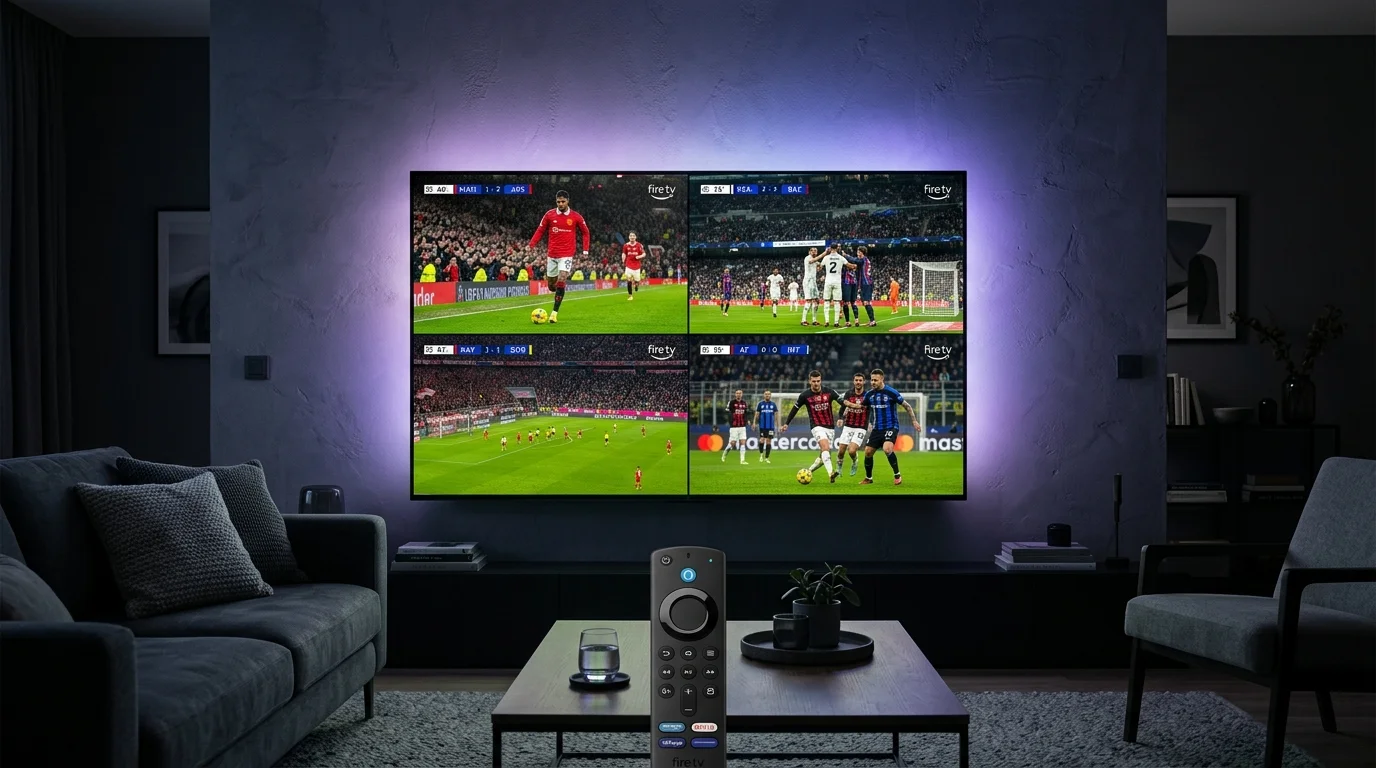
Quick Answer: How to Watch Champions League Multi-Screen
To watch multiple Champions League matches on a single TV screen without cable or satellite:
- Hardware: Amazon Fire TV Stick 4K (or 4K Max 2nd Gen) connected to 5GHz Wi-Fi or Ethernet.
- Application: TiviMate IPTV Player unlocked with Premium for multi-screen support.
- Action: While watching any UCL live feed, long-press the Select button on your remote → choose Multi-View → tap Add Screen → pick up to 4 simultaneous live feeds.
- Service Requirement: A high-bandwidth subscription with dedicated anti-freeze sports servers like Tivimate Prime 4K (60 FPS) to prevent server disconnects during peak European kickoffs.
The 2026 Champions League Dilemma: The New 36-Team League Phase
Under UEFA's newly established 36-team single-league system, the traditional staggered group stage is gone. During October matchdays, marquee clashes—such as Real Madrid vs. Dortmund, Arsenal vs. PSG, Barcelona vs. Bayern Munich, and Manchester City vs. Juventus—routinely kick off simultaneously at 20:00 GMT / 15:00 EST.
For avid football fans, relying on single-screen broadcast channels means suffering through delayed goal replays or frantically flipping between channels. Using traditional broadcaster mobile apps often results in 45-second stream delays and forced commercial interruptions right during penalty kicks.
TiviMate Premium's Quad Multi-View engine solves this completely by turning your living room TV into a sports-bar command center with up to four independent live feeds running in crystal-clear 1080p and 4K Ultra HD.
Viewing Options Compared: Cable vs. Broadcaster Apps vs. TiviMate Multi-View
| Feature | Standard Cable / Satellite | Broadcaster Web Apps | TiviMate Prime (4K Multi-View) |
|---|---|---|---|
| Simultaneous Matches | 1 match at a time | 2 tabs (often crashes browser) | Up to 4 Screen Quad Display |
| Stream Frame Rate | 25 / 30 FPS interlaced | 30 FPS (heavy compression) | Smooth 60 FPS Native High-Bitrate |
| Broadcast Delay | 10–15 seconds | 40–60 seconds lag | Ultra-Low Latency (~5 seconds) |
| Audio Switching Speed | N/A (Requires channel change) | Manual tab mute/unmute | Instant 1-Click Remote D-Pad Navigation |
| Annual Cost | $800 – $1,400 / year | $120 – $240 / year (geo-locked) | $59.99 / full 12 months access |
Downstream Bandwidth & Stability: Single Stream vs. Quad Multi-View
2026 Lab TestedContinuous downstream bitrate (Mbps) required for zero-buffer playback across different stream configurations.
Step-by-Step: How to Set Up 4-Screen Multi-View in TiviMate on Firestick
Configuring multi-view in TiviMate is straightforward once you have your player active with a reliable high-speed playlist. Follow these exact steps:
Launch Your Primary Match
Open TiviMate, navigate to your Sports category, and launch the primary match you want as your main audio source in full screen.
Trigger the Multi-View Quick Menu
While the match is playing, press and hold the Center/Select button on your Firestick remote for 2 seconds. In the bottom popup overlay, select "Multi-view".
Add Channels to the Grid
Select "Add Screen". Your TV screen will split into a dual layout. Use your EPG TV guide to assign match #2. Repeat this process up to 4 times for a 2x2 Quad display.
Toggle Live Audio Between Matches
The screen with the highlighted blue border outputs live stadium commentary. Simply tap Left, Right, Up, or Down on your remote to instantly shift live audio whenever a penalty, red card, or goal occurs on another pitch.
Stream Champions League in Pure 4K 60FPS
Don't let budget servers freeze during 90th-minute winners. Tivimate Prime provides over 20,000+ live premium sports feeds with anti-freeze routing optimized for US, UK, and European sports channels.
Hardware & Bandwidth Requirements for Smooth 4-Screen Streaming
Rendering 4 simultaneous live video streams in real-time places heavy demands on both your streaming hardware and home internet connection. To avoid stuttering or dropped frames, review these performance standards:
1. Recommended Streaming Devices
- Top Pick: Amazon Fire TV Stick 4K Max (2nd Gen, 16GB) or Nvidia Shield TV Pro. These devices feature quad-core GPUs capable of hardware-decoding multiple H.265/HEVC video streams simultaneously.
- Good: Amazon Fire TV Stick 4K (Standard) or Chromecast with Google TV 4K (up to 2-3 simultaneous streams comfortably).
- Avoid: Older 1st-generation Firestick basic models or entry-level smart TV built-in operating systems, which lack sufficient RAM for multi-view processing.
2. Download Speed & Anti-Freeze Optimization
A single premium 4K sports channel streaming at 60 frames per second consumes approximately 15 to 20 Mbps of continuous downstream bandwidth. When running Quad Multi-View (4 live screens), your Firestick pulls between 60 and 80 Mbps in real-time.
For optimal stability, connect your device to your router's 5 GHz Wi-Fi band (or use an Amazon Ethernet Adapter) and ensure your broadband package delivers at least 100 Mbps download speed.
Frequently Asked Questions (UEFA Multi-View on Firestick)
Can I watch 4 games at once on an ordinary Amazon Firestick?
Yes, provided you are using the Fire TV Stick 4K or 4K Max. The standard Firestick Lite can run 2 screens, but 4 simultaneous 60 FPS feeds require the GPU power of the 4K models.
Does TiviMate multi-view require multiple connections from my provider?
Yes. Each screen inside multi-view opens an active connection to your provider's server. Tivimate Prime accounts come configured with multi-connection capability, ensuring all 4 feeds stream seamlessly without getting kicked offline.
How do I change which game is playing full screen?
In multi-view mode, navigate your remote selector over the desired match and double-click the Center/Select button. The selected game will immediately expand to full screen. Press Back to return to your 4-screen grid.
Which sports channels carry the UEFA Champions League?
Tivimate Prime provides access to all official European, UK, US, and Canadian broadcast feeds, including TNT Sports 1-4 & Ultimate (UK), Paramount+ & CBS Sports (USA), DAZN & Canal+ (Europe), and TSN/RDS (Canada) in pristine 4K 60FPS.
Be Ready for UEFA Matchday 2 & 3
Get your TiviMate setup activated with high-speed anti-freeze sports channels in under 5 minutes. Instant login delivery via WhatsApp and email.