In the streaming community, the consensus is clear: TiviMate is the absolute best media player application for Android TV, Google TV, and Amazon Firestick devices. Its sleek, modern interface mimic high-end cable boxes, offering fast zapping speeds and robust channel grouping features. However, for beginners, understanding **how to use tivimate** and configuring the playlist parameters for the first time can feel slightly intimidating.
In this article, the team at **TivimatePrime** will provide a comprehensive guide on **how to setup tivimate**. We will walk you through downloading the app, inputting server API details, setting up correct Electronic Program Guide (EPG) schedules, and configuring advanced player behaviors to ensure a premium, buffer-free viewing experience.
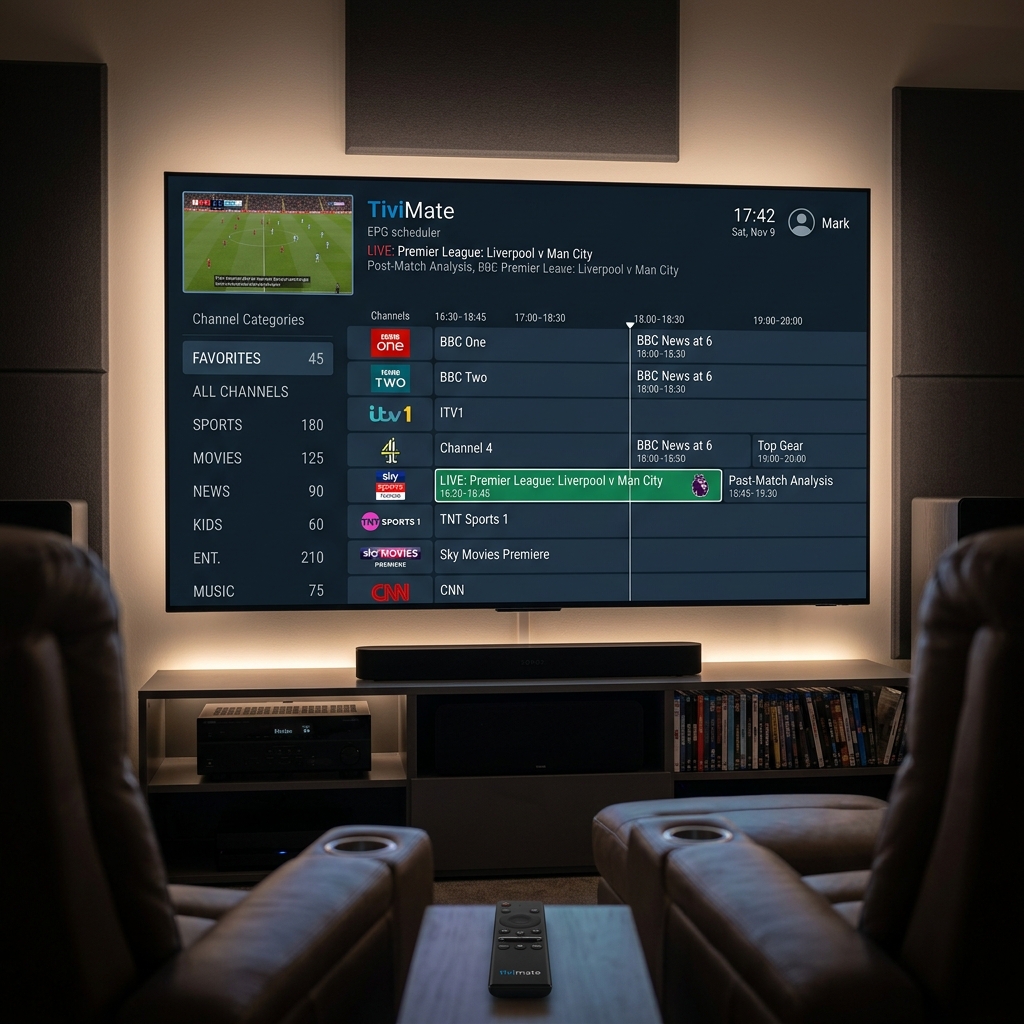
TiviMate Core: App vs. Subscription
Before starting the installation, it is crucial to understand that TiviMate is **strictly a media player**. It does not contain any built-in channels, movies, or TV shows. To watch live TV, you must pair the application with a high-performance IPTV subscription provider (like TivimatePrime) who will supply the playlist streams and EPG URLs.
How to Setup TiviMate (Step-by-Step)
Follow this detailed process to configure the player on your device:
Step 1: Download and Install the App
If you are using an Android TV Box, Chromecast with Google TV, or an Android Smart TV (Sony/TCL), search for "TiviMate" in the official Google Play Store and install it. If you are using an Amazon Firestick, you will need to download the APK file using the Downloader app (using a shortcode provided by our support team) and sideload it onto your Fire OS system.
Step 2: Add Your IPTV Playlist
Open TiviMate and click Add Playlist. You will be given three options to import your channels:
- Xtream Codes Login (Recommended): This is the cleanest setup method. Enter the Server URL (e.g.,
http://tivimateprime.com:8080), along with the Username and Password provided by your support agent. The player will automatically parse channels, EPG guide links, and movie catalogs. - M3U Playlist: Paste the long M3U playlist URL sent by your provider. You will also need to manually enter the EPG URL in the next screen to load program schedules.
- Local Playlist: Load a playlist file stored locally on your device storage.
Step 3: Name Your Playlist and Load Data
Give your profile a recognizable name (such as "Tivimate Prime") and click Done. The player will begin downloading the channels, VOD libraries, and program guide layouts. Depending on the size of the playlist, this initial load takes 1 to 3 minutes.
How to Use TiviMate: Essential Navigation Tips
Once the playlist data is loaded, take a few minutes to familiarize yourself with the default remote buttons layout:
- Select/OK Button: While watching a live stream, press the Center button to bring up the recently watched channels bar. Press it twice to display the overlay menu (containing Search, Multi-View, CC, and Audio tracks selection).
- Back Button: Press the Back button to go from a live channel to the EPG TV Guide grid. Keep pressing Back to access the left-side main menu (containing Movies, TV Shows, Search, Recordings, and Settings).
- Left/Right Arrow Buttons: Skip forward or backward through channels categories, or browse through EPG programs timelines to see what was broadcasted earlier or what's airing next.
Advanced TiviMate Settings for Optimal Performance
To optimize your streaming and prevent buffering drops, navigate to the settings gear menu and adjust these configuration settings:
1. Adjust Playback Buffer Size
Go to Settings > Playback > Buffer Size and select Medium or Large. This configuration forces the player to cache several seconds of video frames in advance, smoothing out minor local Wi-Fi drops and preventing freeze frames.
2. Enable Auto Frame Rate (AFR)
Go to Settings > Playback > Auto Frame Rate and toggle it ON. AFR automatically syncs your TV screen's refresh rate to the native broadcast frame rate of the channel you are streaming (e.g. 50fps or 60fps), eliminating screen judder during live action sports.
3. Set Up EPG Auto-Updates
Go to Settings > EPG > Update on App Start and enable it. Set the update frequency parameter to 12 hours. This ensures you always have correct program schedules, avoiding empty guide metadata.
Knowing **how to use tivimate** correctly elevates your digital home theater experience. Unlock the ultimate stability by pairing your player setup with our high-speed servers at TivimatePrime. Get activated on WhatsApp today!
Ready to Upgrade Your Streaming Experience?
Get instant access to 20,000+ live channels, 80,000+ movies & TV shows, and 100% stable, buffer-free servers. Works perfectly with TiviMate and all major player apps.