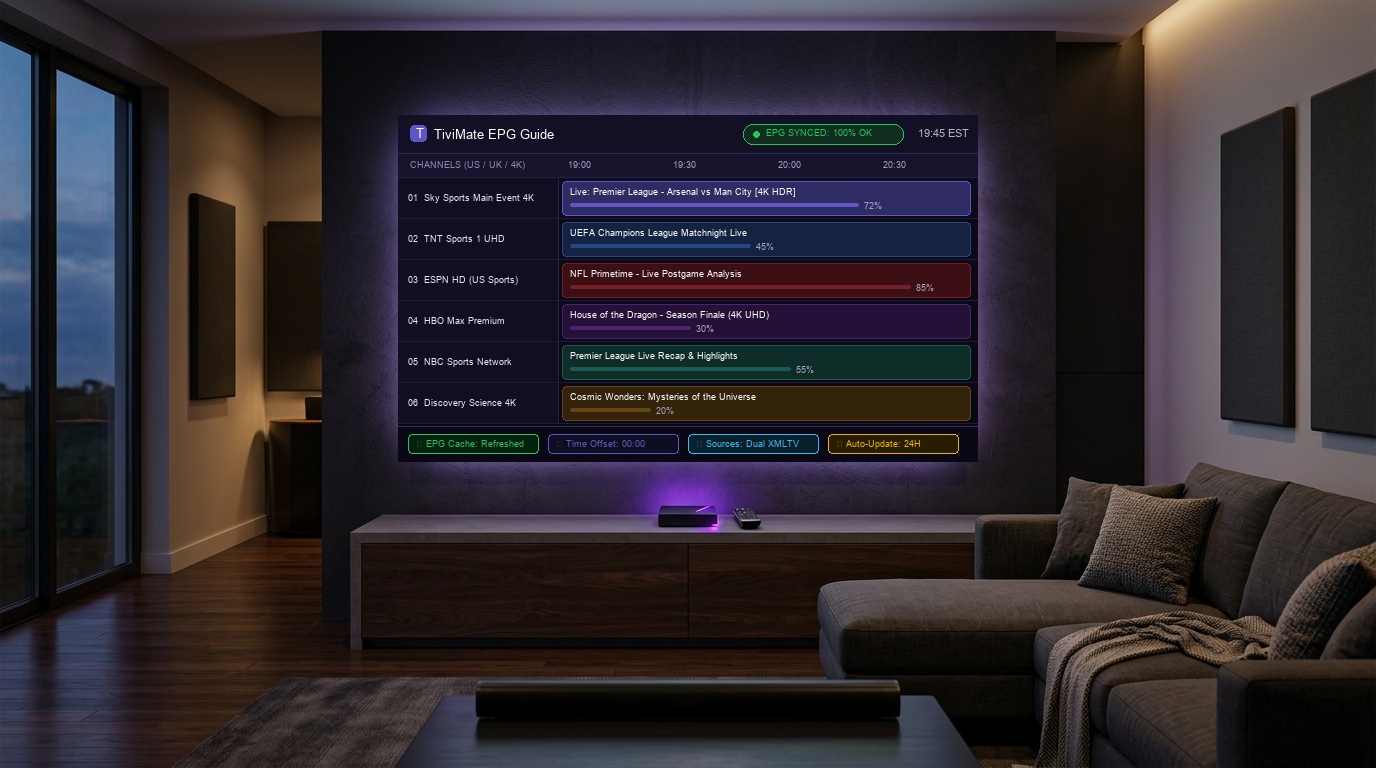
Encountering a blank electronic program guide displaying "No Information" across all your favorite channels is one of the most frustrating experiences in modern IPTV streaming. While TiviMate remains the gold standard media player for Android TV and Fire OS, thousands of streamers experience issues with TiviMate EPG not updating in 2026. Consequently, knowing how to diagnose underlying URL communication failures, clear corrupted cache databases, and re-establish accurate chronological timestamps is vital for an effortless viewing experience.
In this master walkthrough, our technical team demonstrates how to repair your electronic program guide from the ground up. Whether you are running TiviMate on an Amazon Firestick 4K Max, an ONN Google TV streaming box, or an NVIDIA Shield Pro, these exact protocols will restore your schedule data across all live channels. Furthermore, if you require an ultra-stable, high-bandwidth connection with dedicated EPG endpoints, you can always explore our premium IPTV subscription plans or test our infrastructure via an instant 24-hour free trial.
⚡ Quick Summary: Why Your TiviMate EPG Fails to Update
- Corrupted EPG Cache: Stale temporary XMLTV records block new incoming schedules. Solution: Run Clear EPG before manual updating.
- Clock & Timezone Drift: Device system clocks set manually cause TiviMate to display programs in the past or future. Always set to Automatic Network Time.
- Endpoint Timeout & Cloudflare Blocks: Free or congested XMLTV servers trigger HTTP 403 or 404 responses during automated 2-hour update loops.
- Low Firestick Storage: Decompressing large
.xml.gzfiles requires at least 400MB of free flash storage. Low storage silently crashes decompression. - Unassigned Playlist Sources: In multi-playlist configurations, secondary playlists frequently lack an active EPG source assignment.
Why Does TiviMate EPG Stop Updating in 2026?
To solve electronic program guide errors permanently, you must understand how TiviMate ingests scheduling data. An EPG is essentially an XML file (frequently compressed as .xml.gz) following the international XMLTV standard. When TiviMate initiates a synchronization cycle, it performs three distinct operations:
- HTTP GET Handshake: TiviMate connects to your IPTV provider's XMLTV endpoint over HTTP or HTTPS.
- Archive Decompression: The downloaded gzip file is extracted into the device's volatile memory and local flash storage.
- Channel ID Matching: The software parses the XML tags and pairs the
tvg-idortvg-namestrings to the corresponding channel in your playlist.
If any link in this sequence breaks, TiviMate displays the dreaded "Failed to update EPG" toast notification, leaving your channel guide blank. According to the foundational web communications standard IETF RFC 7230 (Hypertext Transfer Protocol) and the W3C XML 1.0 Recommendation, malformed payloads or unhandled redirect headers will cause client parsers to abort data processing immediately. Let us examine the practical steps to resolve these bottlenecks.
Step-by-Step Fix: How to Fix TiviMate EPG Not Updating
Follow these calibrated troubleshooting steps on your streaming device. In over 95% of real-world scenarios, this sequence resolves all guide synchronization failures.
Step 1: Clear the EPG Cache (Without Losing Channel Favorites)
Over time, accumulated schedule data corrupts the local SQLite database that TiviMate maintains. When troubleshooting TiviMate EPG not updating on Firestick or Android TV, purging this temporary database does NOT delete your channel groups, custom order, or favorite channels.
- From the TiviMate home screen, press the Left directional button on your remote to bring up the main side menu.
- Navigate down to the bottom and select the Settings gear icon.
- Click on EPG.
- Scroll down and select Clear EPG. Confirm the action when prompted.
- Wait 5 seconds for the local cache to flush completely.
Step 2: Force an Immediate Manual EPG Refresh
After clearing the cache, immediately command TiviMate to initiate a clean download cycle:
- In the same Settings > EPG menu, select Update EPG.
- You will see a blue progress bar appear beneath the setting indicating data ingestion.
- Allow 60 to 120 seconds for the operation to complete. Do not back out of the menu while the sync is active.
- Once finished, the screen will display: "Successfully updated EPG for X sources".
Step 3: Verify and Assign EPG Sources Per Playlist
Another primary cause of guide synchronization failures occurs when individual channel categories lose their association with the active XMLTV guide source.
- Go to Settings > Playlists and select your active subscription playlist.
- Scroll down to EPG Sources.
- Ensure that your provider's EPG source toggle is switched ON.
- If you utilize multiple EPG feeds, select Manage EPG sources to prioritize the primary guide link.
Step 4: Correct Time Offset Mismatches (Wrong Program Times)
A common variation of the TiviMate EPG not updating symptom is when program titles appear, but they are offset by 2 to 5 hours. This occurs when your IPTV provider generates XMLTV data in UTC or EST while your local Firestick is configured to a different time zone.
- Navigate to Settings > Playlists > [Your Playlist] > EPG.
- Select Time offset.
- Adjust the slider in 30-minute intervals (for instance,
+02:00or-05:00) until the active live program corresponds exactly with current real-world broadcasting.
Step 5: Create a Full Backup Before Major Updates
To safeguard your hard work, customized channel categories, and favorite channels across devices, always create a regular backup file:
- Navigate to Settings > General > Backup data.
- Choose your storage location (Local internal storage, USB drive, or a local LAN SMB shared folder).
- Save the file (e.g.,
tivimate_backup_2026.tmb). - To restore your complete layout on a second television, install TiviMate, go to Settings > General > Restore data, and select the saved backup file.
Upgrade to 99.9% Guide Accuracy with TiviMate Prime
Many budget providers fail to update their XMLTV servers regularly. TiviMate Prime features dedicated, multi-redundant 7-day electronic program guides geo-optimized for US, Canadian, UK, and European channels with automatic daily synchronization.
Playlist Connection Methods: Impact on EPG Reliability
The architectural method used to connect your playlist directly influences EPG reliability. Many users still enter raw M3U URLs, unaware that modern Xtream Codes API connections provide superior synchronization reliability.
| Feature / Metric | Xtream Codes API (Recommended) | Raw M3U Link | Stalker Portal / MAC |
|---|---|---|---|
| EPG Auto-Configuration | Automatic (Dedicated XMLTV) | Manual url-tvg Required | Server-Side Ingest |
| Sync Speed (15k Channels) | < 45 Seconds | 2 to 5 Minutes | 1 to 2 Minutes |
| Archive Compression | Optimized GZIP Stream | Heavy Raw XML Payload | Binary Portal Stream |
| Catch-Up & Replay Sync | Fully Synchronized | Unsupported / Broken | Supported |
| Failure Recovery | Auto-Reconnects on Launch | Silent Failure | Portal Re-login Required |
TiviMate EPG Error Code Cheat Sheet
To resolve persistent TiviMate EPG not updating 2026 errors on modern streaming devices, consult this rapid reference matrix to identify the root failure mechanism:
| Error Display | Root Mechanism | Immediate Fix Protocol |
|---|---|---|
| Failed to update EPG | DNS resolution failure or Cloudflare Ray ID rate-limiting. | Switch EPG protocol from https:// to http://, or connect to a premium streaming VPN. |
| HTTP 404 EPG Not Found | Provider changed server path from /xmltv.php to a static cluster. | Contact provider for the refreshed XMLTV link or re-add playlist using Xtream Codes API. |
| XML Parsing Exception | Truncated download due to low storage space (<300MB on Firestick). | Uninstall unused applications to clear flash storage, then run Clear EPG and re-sync. |
| Wrong Schedule Times | Timezone discrepancy between local hardware and broadcast server. | Set Firestick clock to Automatic; adjust TiviMate Time Offset in Settings > Playlists > EPG. |
| Corrupt .tmb File | Backup interrupted during write process to USB or local disk. | Generate a fresh backup with at least 500MB free storage space available. |
Frequently Asked Questions (Q&A)
Below are authoritative answers to the five most frequently asked questions regarding TiviMate guide synchronization and playlist management:
1. Why does TiviMate say "No Information" on channels?
The "No Information" banner occurs when TiviMate cannot match a channel's internal identification code with entries inside the downloaded XMLTV file. This typically stems from an out-of-sync system clock, a corrupted local EPG cache, or a provider that failed to publish schedule data for that specific channel ID. Purging the cache via Settings > EPG > Clear EPG resolves this in most cases.
2. How do I manually update the EPG in TiviMate?
To trigger a manual sync, open the left navigation menu, go to Settings > EPG, click Clear EPG, and then immediately click Update EPG. Keep the app open on this screen for 1 to 2 minutes while the download and parsing progress bar reaches completion.
3. How do I fix wrong program guide times?
If your guide displays programs 1 to 5 hours early or late, navigate to Settings > Playlists > [Your Playlist] > EPG > Time offset. Adjust the offset hours positively or negatively until the schedule matches your current local broadcast time. Also verify that your Firestick or Android TV device clock is set to Automatic Network Time.
4. How do I transfer my TiviMate settings to another Firestick?
You can easily clone your entire setup. In TiviMate, go to Settings > General > Backup data and save the generated .tmb file to local storage or an SMB network folder. On your second device, install TiviMate, go to Settings > General > Restore data, and select the backup file. Your channels, groups, and EPG settings will restore instantly.
5. Can I add multiple EPG sources to one playlist?
Yes. TiviMate Premium supports multiple external EPG sources. Navigate to Settings > EPG > EPG Sources > Add EPG source. Once added, you can assign the secondary guide to your primary playlist or manually map missing channels by holding the select button on a channel and choosing Assign EPG.
Ready for an IPTV Experience That Just Works?
Stop wrestling with dead EPG links and freezing streams. TiviMate Prime delivers 25,000+ live 4K channels, 99.9% EPG accuracy, and zero buffering across all devices.