How to Fix "Failed to Update Playlist" in TiviMate: 2026 Troubleshooting Guide
Nothing ruins a movie night faster than firing up TiviMate only to be greeted by the dreaded notification: "Failed to update playlist." When this happens, channels refuse to reload, the electronic program guide displays "No Information," and playback stalls. Before you reinstall the app or wipe your configuration, here is our definitive 2026 diagnostic protocol to identify the exact bottleneck and restore your streams in under two minutes.
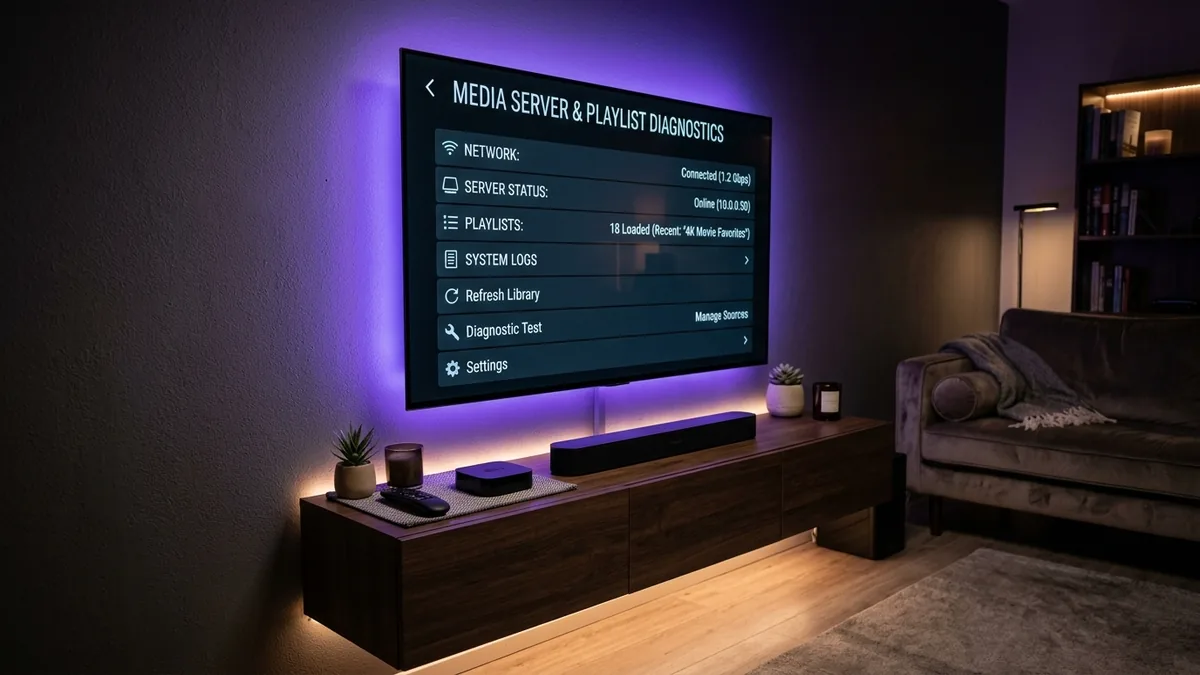
Key Takeaways: Resolving TiviMate Playlist Errors
- ✔ Verify the Source First (Browser Test): Paste your playlist or server URL into a phone browser. If it fails to connect or says "Forbidden," the issue is on your provider's server or ISP blocking, not TiviMate.
-
✔
Change User-Agent String: Many CDN firewalls (like Cloudflare) block requests from TiviMate's default header. Changing your User-Agent to
VLCorIPTVSmartersProin Settings > General solves 403 blocks instantly. - ✔ Migrate M3U to Xtream Codes API: Massive raw M3U text files frequently exceed socket timeout thresholds. Switching to Xtream Codes reduces playlist payload parsing to under 3 seconds.
- ✔ Clear App Cache (Never Clear Data): Purging stale cache files in device settings clears corrupted database pointers without deleting your favorites or credentials.
- ✔ Upgrade to Enterprise Server Routing: If your cheap provider repeatedly drops offline during prime hours, switch to TiviMate Prime ($49.99/yr or $399 Lifetime VIP) for 99.9% unthrottled server uptime.
Root Cause Matrix: Why Playlists Fail to Update in TiviMate
TiviMate is purely an Electronic Program Guide (EPG) and media player engine—it does not host, curate, or transmit video feeds. When an update fails, the application is failing to receive a valid response from the remote server endpoint. Understanding where the communication breakdown occurs saves hours of guesswork.
| Error Manifestation | Underlying Cause | Diagnostic Location | 60-Second Solution |
|---|---|---|---|
| HTTP 403 Forbidden | Server or Cloudflare blocks default app User-Agent | Remote CDN / Server Firewall | Set User-Agent to 'VLC' |
| Socket Timeout (10005) | M3U file too large or connection too slow | Network / Memory Buffer | Switch to Xtream Codes API |
| DNS Lookup Failure | Home ISP filtering streaming server domain | Router / Local DNS Resolver | Change DNS to 1.1.1.1 |
| Parsing Error / Corrupt DB | App cache corrupted by forced device shutdown | Local Flash Memory | Clear Cache & Force Stop |
| HTTP 401 / Account Expired | Expired subscription or concurrent connection block | Provider Billing / Auth Token | Renew Active Subscription |
Visual Troubleshooting Flowchart: Isolating the Issue
Follow this logical sequence to pinpoint whether the playlist failure originates from your local streaming device, your home internet service provider, or your remote subscription host:
TiviMate Playlist Update Troubleshooting Flowchart
Diagnostic decision tree for rapid error resolution in under 2 minutes
Step-by-Step Diagnostic Protocol to Restore Your Playlist
Execute these tested troubleshooting procedures in order to clear the error without losing your channel groupings:
Run the External Browser Test
Copy your M3U playlist link or Xtream Codes server URL. Open Chrome or Safari on your smartphone or PC and paste the URL into the address bar. If your browser immediately prompts you to download a .m3u file or displays a JSON response, your server is active and the blockage is local. If the browser returns "Site can't be reached" or "Connection Timed Out," your provider's hosting domain is unreachable.
Change TiviMate User-Agent to Bypass CDN Filters
Many streaming servers use Cloudflare or reverse proxies configured to block non-browser user-agent strings. To bypass this, launch TiviMate > Settings > General > User-Agent. Type VLC or IPTVSmartersPro (case-sensitive) and click OK. Return to Settings > Playlists > select your playlist > click Update playlist.
Migrate from Raw M3U to Xtream Codes API
If your subscription includes 20,000+ channels and 80,000+ VOD titles, downloading an entire raw M3U text file will cause network sockets to time out. Instead, go to Add Playlist > choose Xtream Codes. Enter your server URL, username, and password provided by TiviMate Prime. Xtream Codes queries categories individually, eliminating buffer timeouts during updates.
Clear Device Application Cache (Do Not Clear Data)
On your streaming device (Amazon Fire TV, Google TV, or Android TV Box), exit TiviMate. Go to Settings > Applications > Manage Installed Applications > TiviMate. Select Clear Cache, then select Force Stop. Restart your device. This clears orphaned temporary lock files without deleting your saved playlists or custom channel order.
Change DNS Resolvers to Bypass ISP Traffic Shaping
Major internet service providers frequently use DNS redirection to block streaming servers during high-traffic broadcast windows. On your streaming device or Wi-Fi router, change your primary DNS from your ISP default to 1.1.1.1 (Cloudflare) and secondary DNS to 8.8.8.8 (Google). This routes your domain lookup through uncensored global resolvers.
Test with a 4G/5G Smartphone Mobile Hotspot
To isolate whether your home router or modem is throttling traffic, enable Mobile Hotspot on your cellular phone. Connect your Firestick or Google TV to the phone's hotspot Wi-Fi. In TiviMate, click Update playlist. If the playlist synchronizes immediately over cellular data, your home ISP is actively shaping or blocking your home internet connection.
Tired of Unreliable Servers Failing During Prime Time?
Over 80% of playlist update failures stem from oversold budget servers crashing under load. Switch to TiviMate Prime for dedicated 10Gbps unthrottled bandwidth, zero CDN blocks, and instant sub-second channel updating.
Instant WhatsApp activation under 2 minutes • 100% money-back guarantee • Fully compatible with TiviMate across Firestick, Android TV, Google TV & Apple TV
Frequently Asked Questions About TiviMate Playlist Errors
Why does TiviMate say "Failed to update playlist"?
The error typically occurs due to one of four reasons: your provider's backend server is temporarily down or overwhelmed, your ISP is filtering the streaming domain via DNS, Cloudflare/CDN firewalls are blocking TiviMate's default User-Agent string, or local app cache memory has become corrupted.
How does changing the User-Agent fix TiviMate playlist update errors?
Many streaming server hostings and Cloudflare security layers block requests containing generic media player user-agents. Setting your User-Agent to 'VLC' or 'IPTVSmartersPro' in TiviMate Settings > General > User-Agent disguises your app handshake as a standard desktop media client, immediately resolving HTTP 403 Forbidden errors.
Will clearing cache delete my TiviMate playlists and favorites?
No. Selecting 'Clear Cache' in your streaming device settings removes only temporary download logs and stale EPG indexes. It does NOT delete your playlists, credentials, or custom favorites. However, do NOT click 'Clear Data', as that will factory reset the application.
Why is Xtream Codes API more reliable than M3U URLs in TiviMate?
M3U playlists require TiviMate to download a massive text file containing tens of thousands of channel entries all at once, which frequently times out on slower home connections. Xtream Codes API queries the provider's database incrementally, reducing sync time to under 3 seconds and preventing memory crashes.
The Bottom Line: Stop Troubleshooting, Start Streaming
If you have walked through User-Agent changes, cache purges, and DNS swaps and your playlist still refuses to reload, the verdict is clear: your provider's infrastructure is unstable, throttled, or compromised.
With TiviMate Prime, you receive dedicated private Xtream Codes endpoints backed by 10Gbps load-balanced European and North American CDN nodes, ensuring your playlist updates instantly and your 4K feeds never stutter.